HIGHTHEMES
  • Home
  • Resources
    • Documentations
    • Blog
      • 8 Best Bookstore WordPress Themes for 2023
      • 8 Best Fitness and Gym WordPress Themes for 2018
      • 8 Best Photography WordPress Themes for 2023
      • 8 Best Music WordPress Themes for 2023
      • 7 Best Jewelry Ecommerce WordPress Themes 2018
      • 7 Best WordPress Pricing Table Plugins for 2018
      • 8 Best Non-Profit WordPress Themes 2018
      • 9 Best WordPress Themes for Cafes 2018
      • 10 Creative Business WordPress Themes 2018
      • Best WordPress Books 2017
      • Best WordPress Live Chat Plugins
      • Best Transport WordPress themes
      • Best New Food WordPress Themes
  • WordPress Themes
  • WordPress Plugins
  • Services
    • WordPress Customization Service
    • WordPress Installation Service
  • Get a quote button

ARISN

Helping more than 6,000 clients to start their online business, we will be more than happy to help you too.

HOME / Documentation / Arisn

Documentation

  • Before getting started
  • Installation and setting up the theme
  • Installing the required and recommended plugins
  • Initial Theme Setup
  • Change theme color
  • Using custom typography
  • Logo
  • Header Layouts
  • Arisn Visual Composer Widgets or Elements
  • Visual Composer Template
  • Importing demo data
Download Now

Hello there, first of all, thanks for purchasing Arisn.
This is a comprehensive and also an easy-to-use help file that allows you setup and use Arisn WordPress theme. Arisn is designed really user-friendly and if you have been a WordPress user before, you won’t need to read this help file completely and it’s enough to look at the main titles and read what you need. Our themes usually get regular updates including bug-fixes and improvements. So, don’t forget to follow us on Twitter and Envato.

Some Important Notes:

  • Please take the time to read through the documentation, as many support related questions can be answered simply by re-reading these instructions.
  • We will be happy to help you tweak the theme but just for small ones. For more advanced customizations, contact us for paid customizations.
  • Again, Thanks for purchasing our themes. Please don’t forget to give us 5- stars if you enjoyed using our themes.

You need to extract the .zip file which you’ve downloaded from Themeforest server. It contains a couple of folders such as Help,.. and the main theme folder. The theme folder’s name is “Arisn“. You can upload it directly to your host via FTP in /wp-content/themes. Then you can simply activate Arisn as you would activate every other WordPress theme at Appearance -> Themes.

Also, you can use “Arisn.zip” file in WordPress theme uploader section in order to install the theme via WordPress directly.

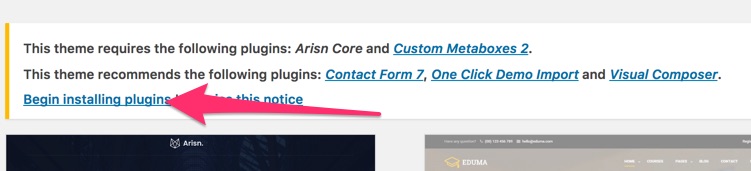
Arisn requires a few plugins in order to work properly. Some are needed and some are recommended. Just after activating the theme, you will be notified with the following message.

click Begin installing plugins to install and activate all the plugins.

So you should have the following plugins activated.

  • Arisn Core
  • CMB2
  • Contact Form 7
  • One Click Demo Import
  • WPBakery Visual Composer

If you’re running a shop, you can install WooCommerce too as Arisn is 100% compatible with WooCommerce.

So after activating the theme and the plugins, now we’re going to setup the navigation menu, static homepage and visual composer options.

Setup Navigation Menu

First, You need to register the menu.
To register the navigation menu, go to Appearance -> Menus from the dashboard left sidebar.

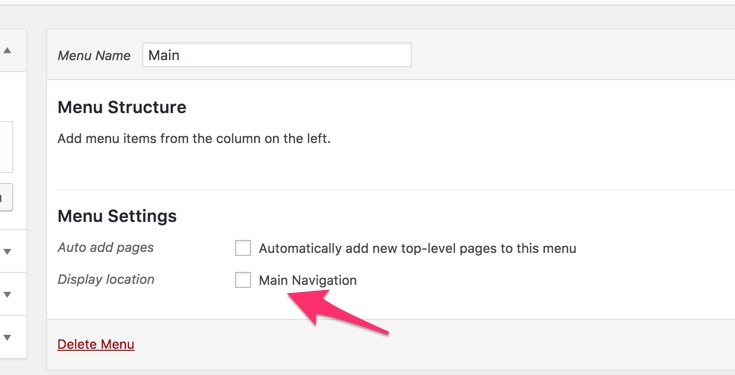
Now create a menu and name it just like below:
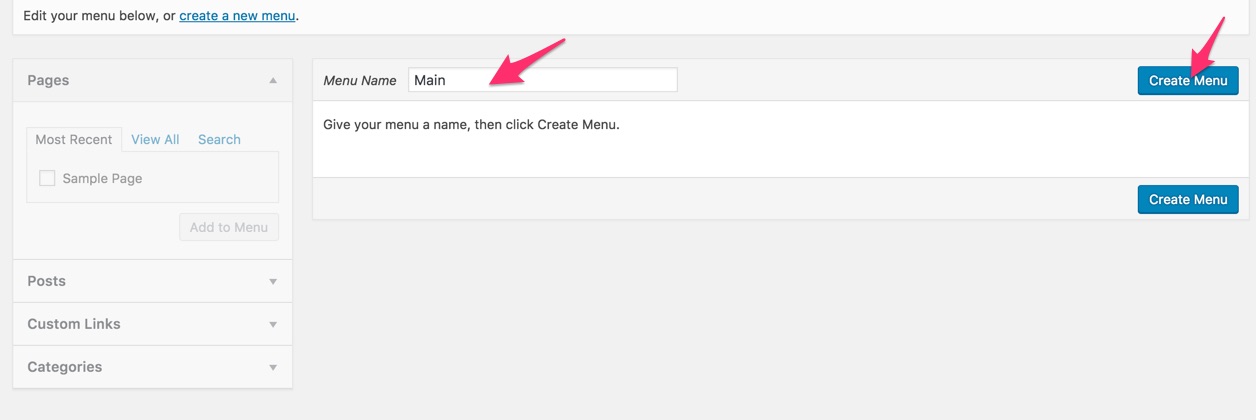
As you see, we need to check “Main Navigation” box to enable the main navigation. Now you can add your menu items to the site header by drag-n-dropping pages
You can add pages, posts, portfolio items, and custom links to your menu as you do normally in WordPress.

Mega Menu Setup

As you may have seen on the demo, arisn allows you to have a multi-column mega menu. Just follow the steps below to setup your mega menu.
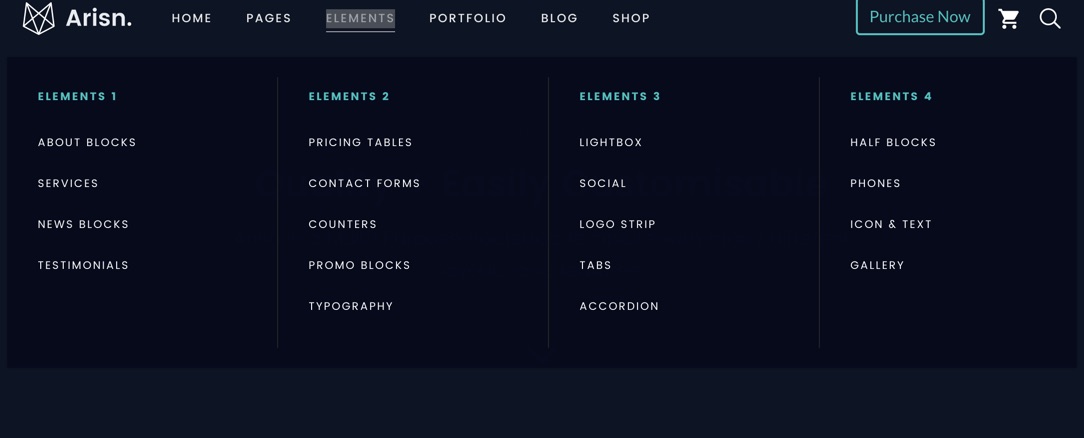
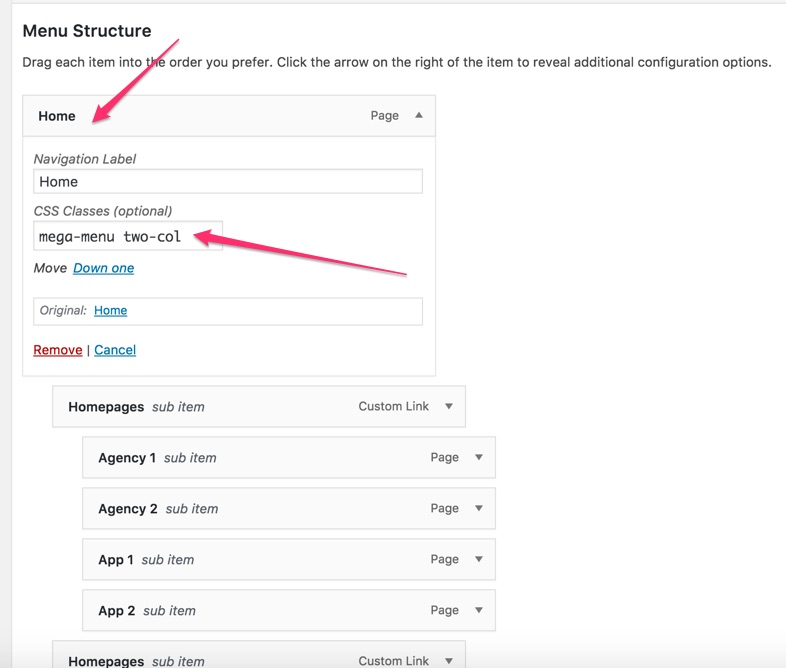
Now go to Appearance -> Menus. As you see below, you need to nest a custom link as the mega menu column’s heading. Create a custom link, name it whatever you like and drag and drop it under your desired menu item. You can create up to 4 headings meaning up to 4 columns for your items.

Next step is to making sure you’ve css classes box enabled for each menu item. To do so, click Screen Options and check CSS Classes box. Now

Now at the first level, we’re going to mark an item as mega menu holder. Click the small arrow which is on top right of the menu item and write mega-menu inside the CSS classes field. You should also enter the number of columns such as two-col, three-col, or leave it blank for 4 columns as we did in our example.
Setup Static Homepage

By default if you check your homepage, what you see is the latest posts archive. You can change it to display a static page instead. To do so, go to WP Admin > Settings > Reading
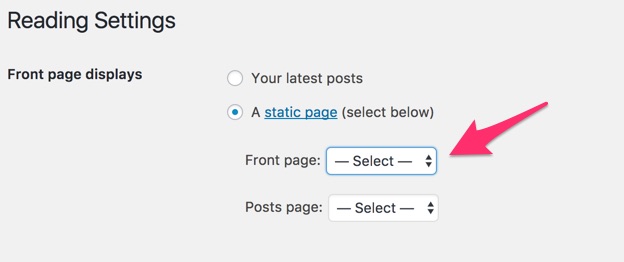
You should select the page you want as the home page.

Visual Composer Settings

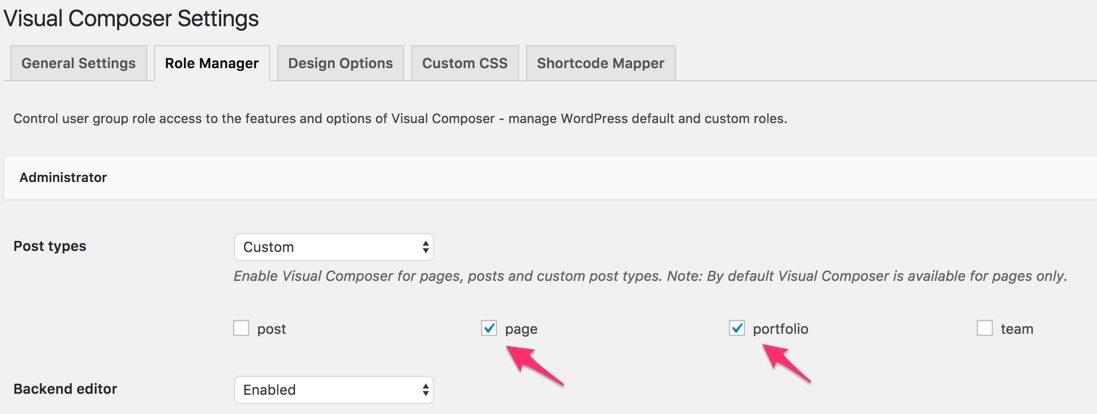
If you’ve installed visual composer page builder, there is nothing to set except making sure the theme custom posts are enabled.
Permalink

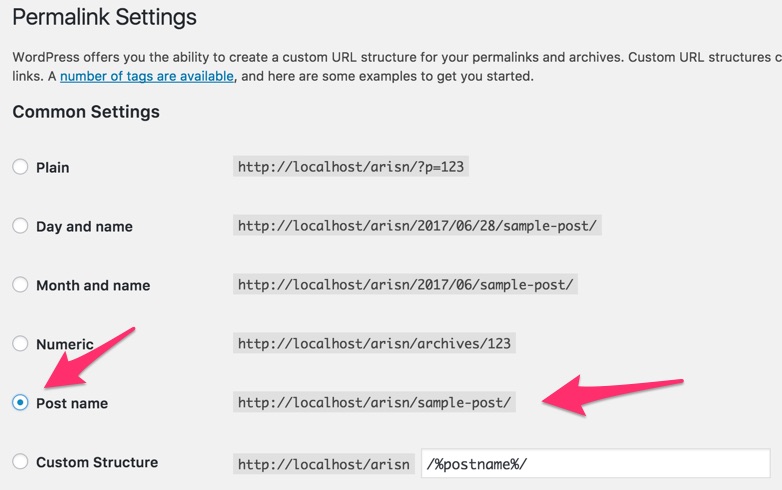
Finally, if you have not done so already, its highly advisable to update your permalink settings. To do this, head to Settings > Permalinks and select any option other than default. We recommended ‘postname’ – as you can see below.
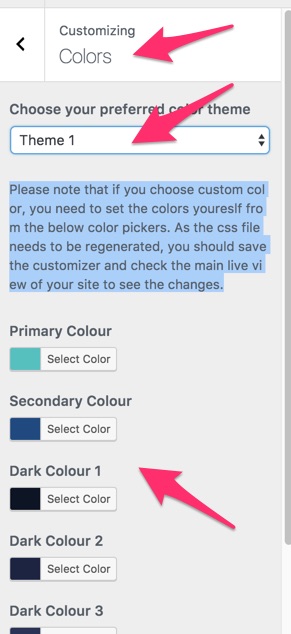
Arisn comes with 7 pre-defined theme colors which you can choose from. You can also use custom colours to personalize the theme more. You can do it by choosing customfrom the list, then set your desired color using the available color pickers.

If you use custom color option, the css will be generated from scratch so it wouldn’t be visible in live preview. You need to save the customizer options and check your site live view by clearing browser cache.

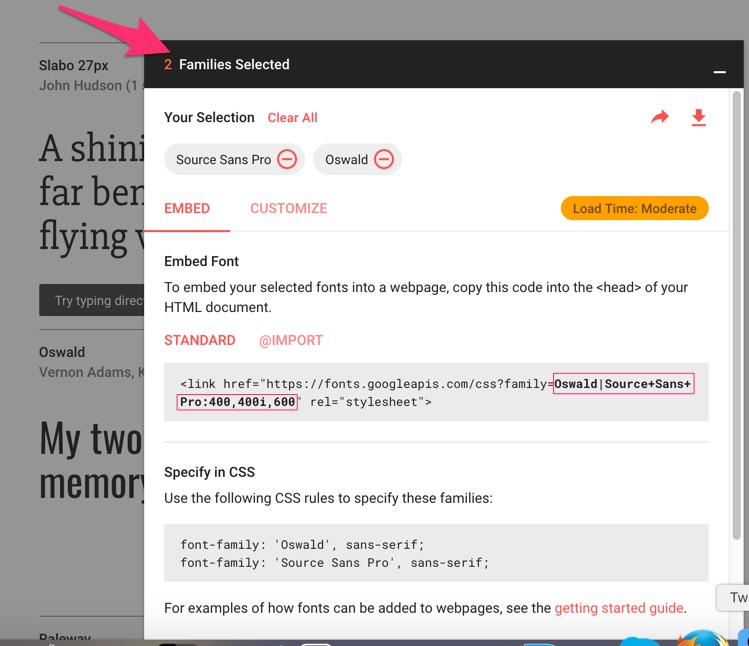
In Arisn, you can use custom Google fonts for headings and general texts. First we need to import our favorite fonts as below. Head to https://fonts.google.com/ and add your desired fonts using the plus icon on each font. Then click the Families Selected box in order to maximize its window.

as you see, we have added two fonts to our selected families, Oswald and Source Sans. As specified in the image, you should copy the fonts names and weights as generated by google. Oswald|Source+Sans+Pro:400,400i,600

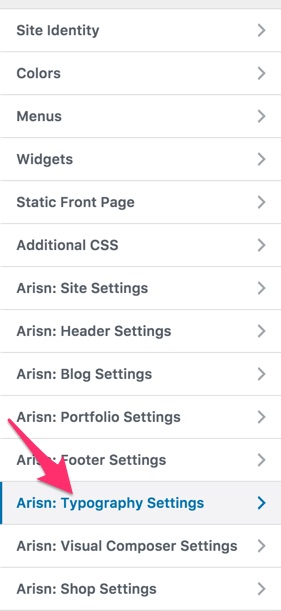
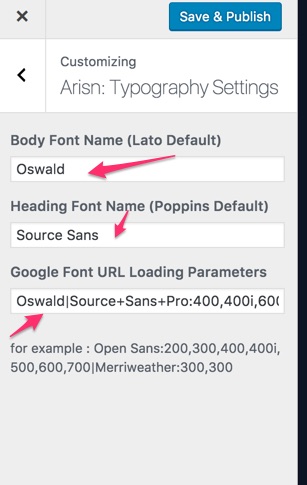
Now paste it into Google Font URL Loading Parameters field as shown below.

So you have loaded the custom fonts and you can fill the Body Font Name and Heading Font Name fields with your favorite google fonts.


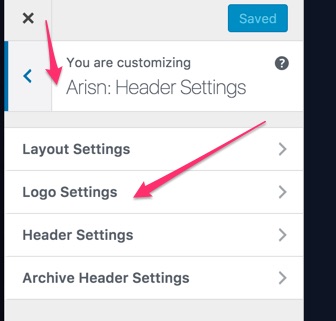
Head to Customizer -> Header Settings -> Logo Settings

Here you can upload two versions of your company logo. As the theme comes with dark & light headers, so you need to upload a dark and a light logo.


Arisn offers the flexibility to choose between various header combinations and layouts for your site with the ability to override it in pages, posts, and archive pages.

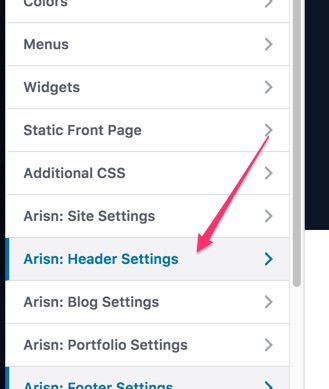
As you see, you should head to Arisn Header Settings > Layout Settings > . The options are pretty self explanatory. We can set the global header options here. What you set here will be applied to all pages, posts, archive pages unless you override them individually.

The first option, “Global Header Transparency”, allows you to choose between transparent and no transparent header bar. If you choose no transparent, the header will have a solid background color.

“Global Header Layout”, allows you to choose the layout of your header which holds the menu navigation. There are three options here each in dark and light versions.

“Global Subheader Layout”, allows you to specify the subheader layout. Again Standard & Minimal are the options each in dark and light color. Minimal one displays a breadcrumb.

NOTE: If you choose a dark header layout, make sure you’ve chosen a dark subheader layout too.

Archive Header Settings

If you don’t set or customize this section, it will inherit the settings from global header settings which we set before. By the way, if you prefere to have different header layout for various archive pages such as Blog archive, Portfolio, Search, or shop (in case of using woocommerce).

Override Header Layouts

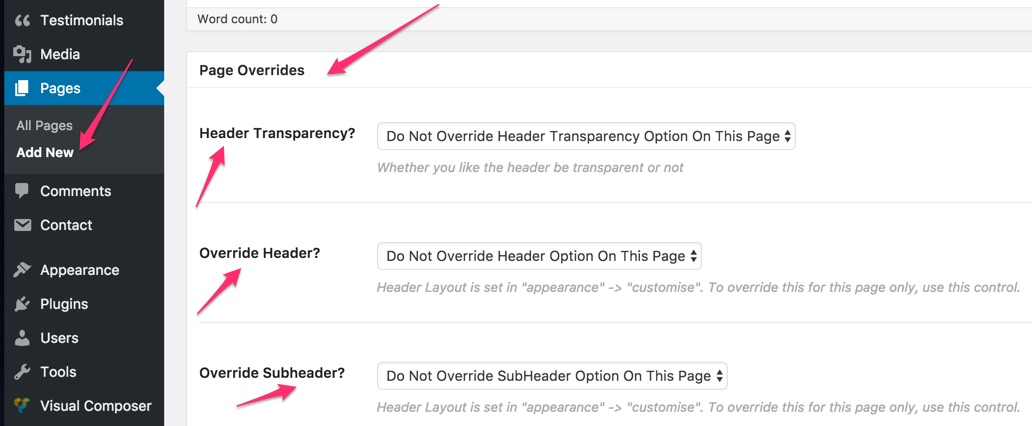
You can override the header settings in individual pages, posts, and portfolio pages.


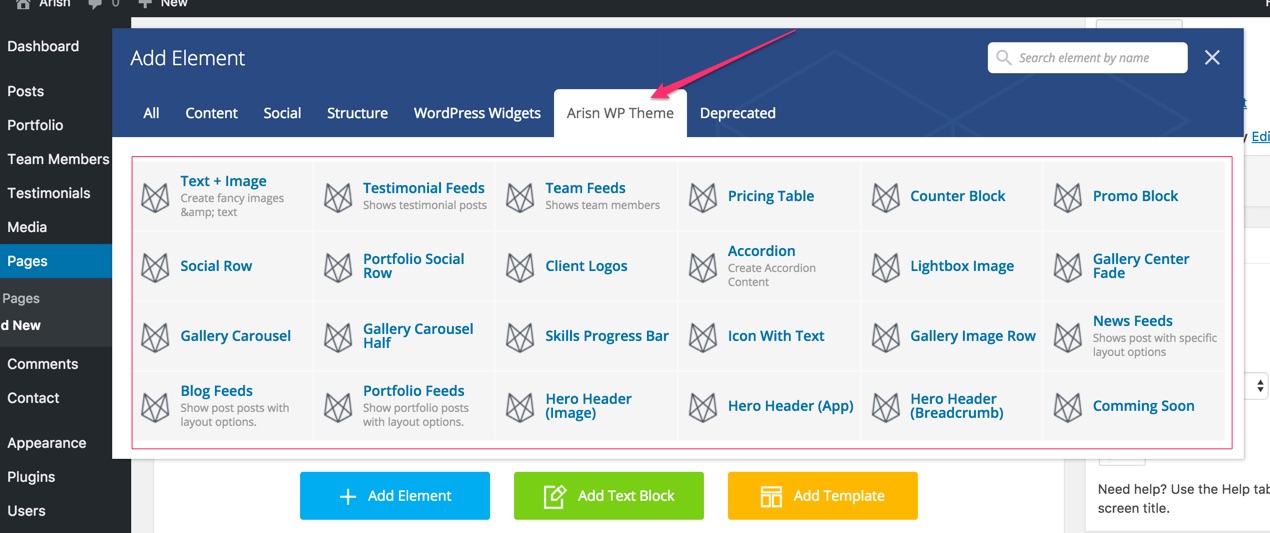
Arisn theme uses the popular visual composer page builder. We have added a number of unique widgets developed only for Arisn. You can find all of them as shown below.

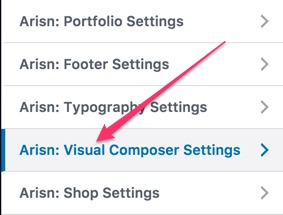
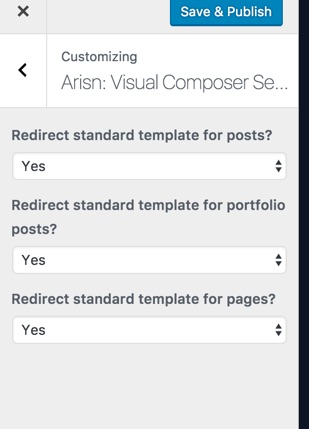
Arisn has a special template for those pages that are built with visual composer. This extra template helps you build more complex layouts using Visual composer page builder. You can turn on/off this feature using the theme customizer as shown below.

If you keep the template redirection on, when you use visual composer elements, the theme will use template-parts/page-visual-composer.php as the template. This template allows you to take the control of sub header layout with visual composer.

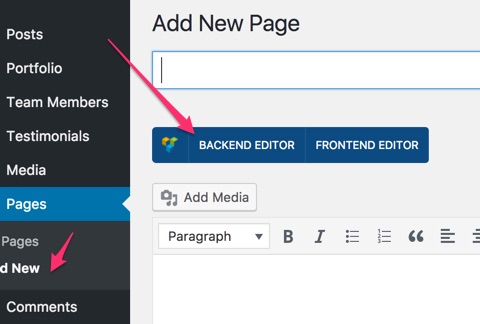
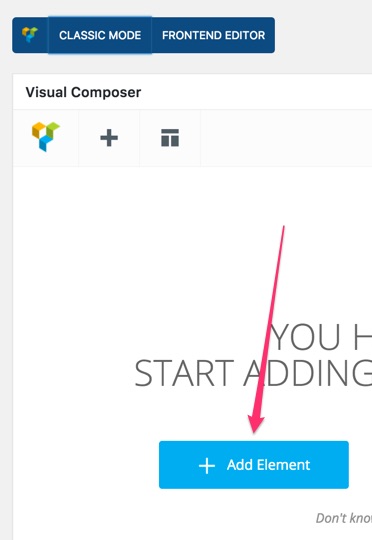
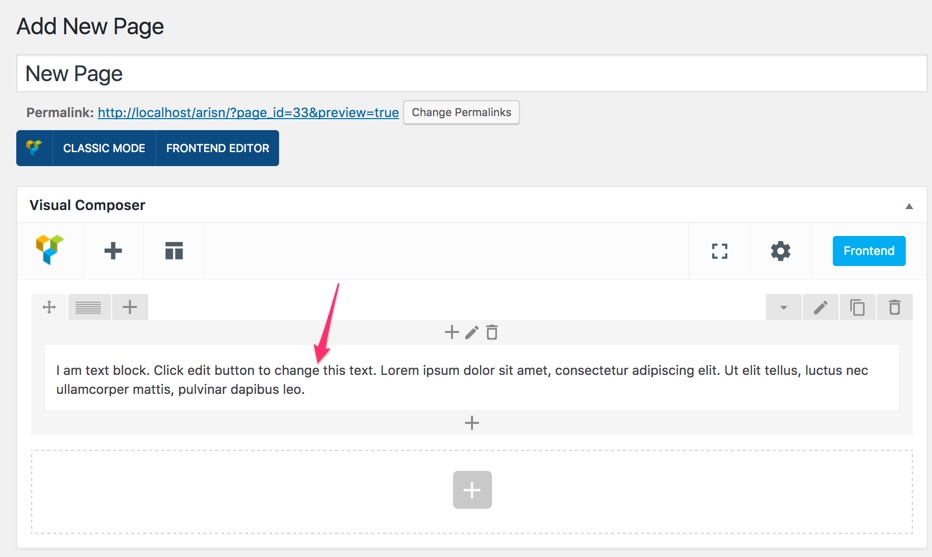
If you create a page with visual composer template, you should add the sub header element yourself using visual composer too. Please check the following images.

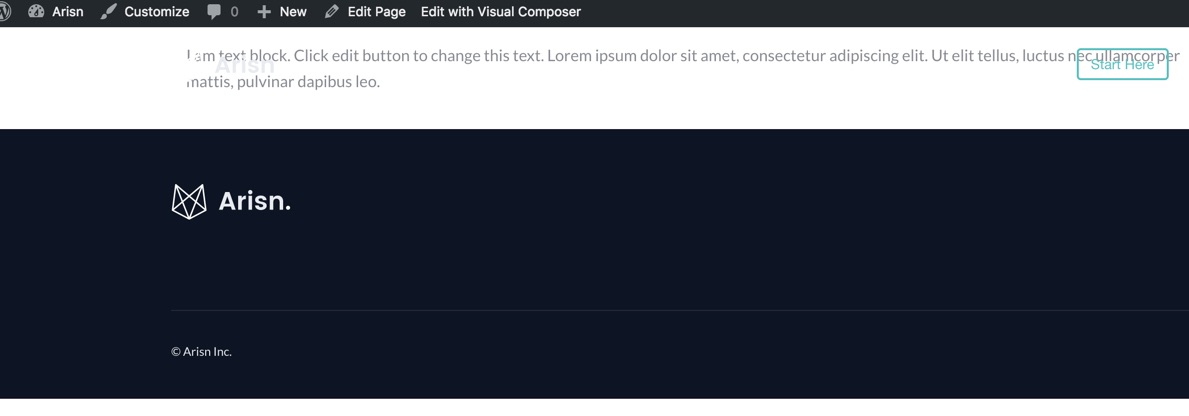
Checking the preview

as you see it seems the page has been broken, but it’s not broken. You need to use one of Hero Headers in order to fill the missing subheader area.

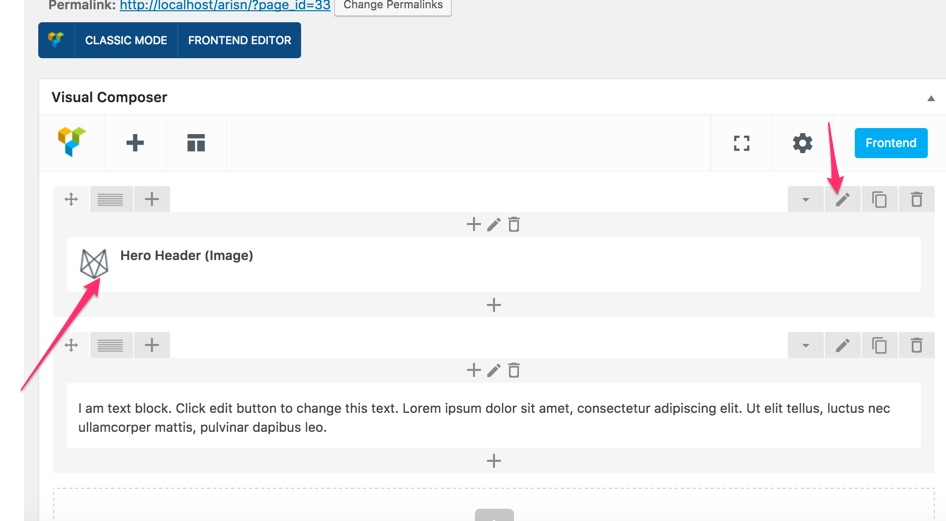
You can choose one of the available Hero Headers.

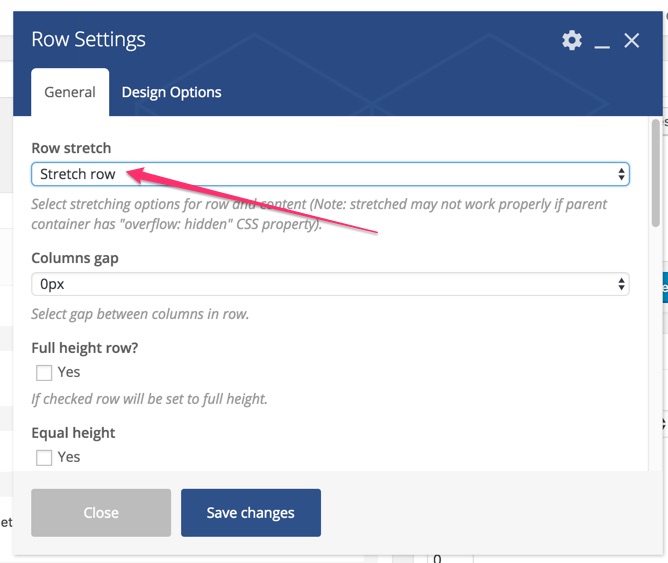
As you see I’ve re-ordered the Hero Image to be the first element. Now you need to edit the row and make it full width.

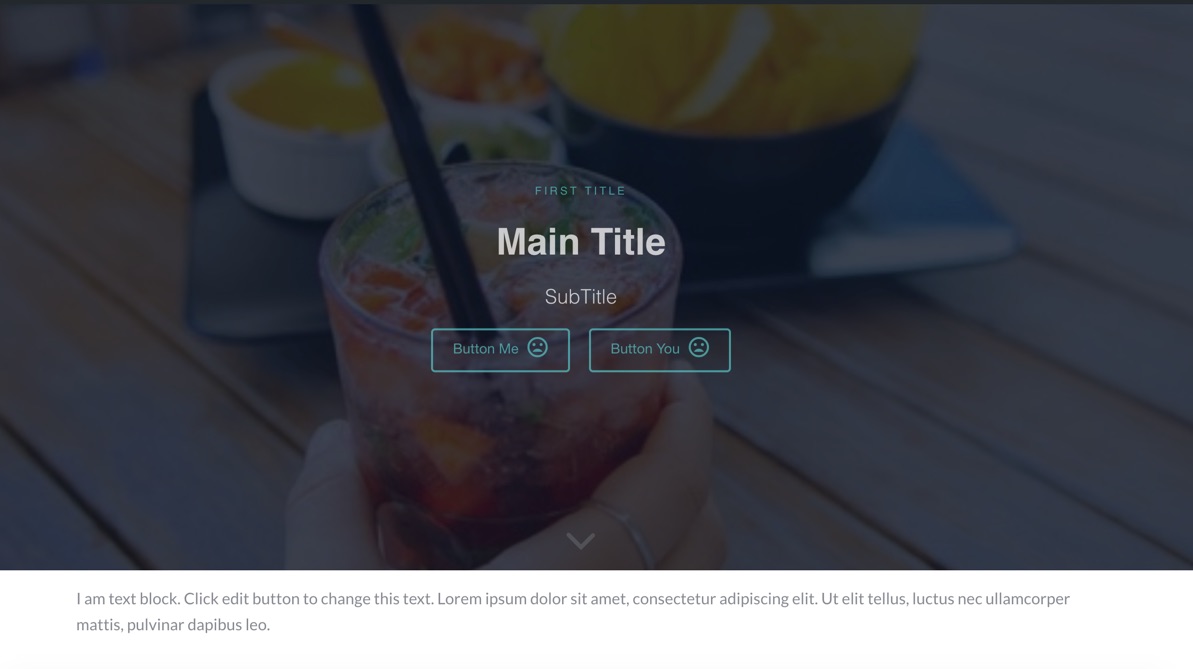
Now if we save the page and take a look at the preview, it will look like below


To install demo data,

1. First, make sure you have activated the theme and all the plugins recommended by it specially One Click Import.

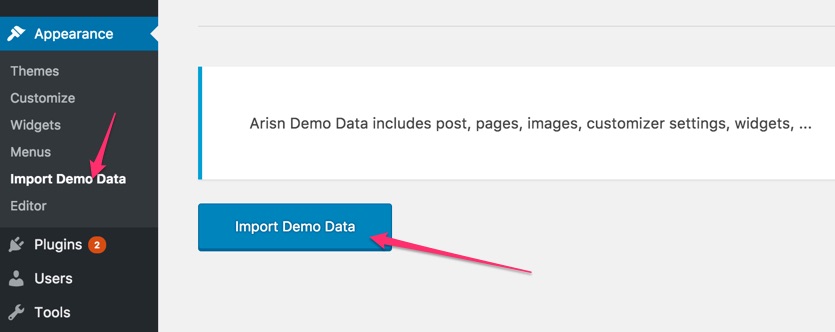
2. Navigate to Appearance > Import Demo Data. Now click on Import Demo Data and wait untill receiving the success messsage.

After importing the demo, your site is almost similar to the original demo. Only you need to set the shop page in woocommerce settings if you have it enabled.

HighThemes

  • About HighThemes
  • WordPress Themes
  • Contact Us
  • Terms of Services

Useful Links

  • WordPress Customization Service
  • Support
  • Privacy Policy

We at

  • Twitter
  • Facebook
  • Themeforest

Subscribe to our newsletter to get discounts, news, updates, free stuff and new theme releases by email.
We don’t do spam.

©2026 HighThemes by WPExperts All rights reserved.

This website uses cookies to ensure you get the best experience on our website. Learn more

HighThemes
Powered by  GDPR Cookie Compliance
Privacy Overview

This website uses cookies so that we can provide you with the best user experience possible. Cookie information is stored in your browser and performs functions such as recognising you when you return to our website and helping our team to understand which sections of the website you find most interesting and useful.

Strictly Necessary Cookies

Strictly Necessary Cookie should be enabled at all times so that we can save your preferences for cookie settings.